



Default DNS
Blocks ads & trackers
94.140.14.14
94.140.15.15
Independent DNS Tools & Guides
Independent DNS Configuration Checker
Find out which DNS resolvers handle your browser's test requests. Run a DNS check, review the available results, and get step-by-step guidance for setting up AdGuard DNS on your device.
Ready to check your DNS. No account required.
Check your connection to see which DNS resolvers were observed.
Not tested yet
Once the diagnostic service is connected, results will appear here after a real test. No resolver information has been collected in this local preview.
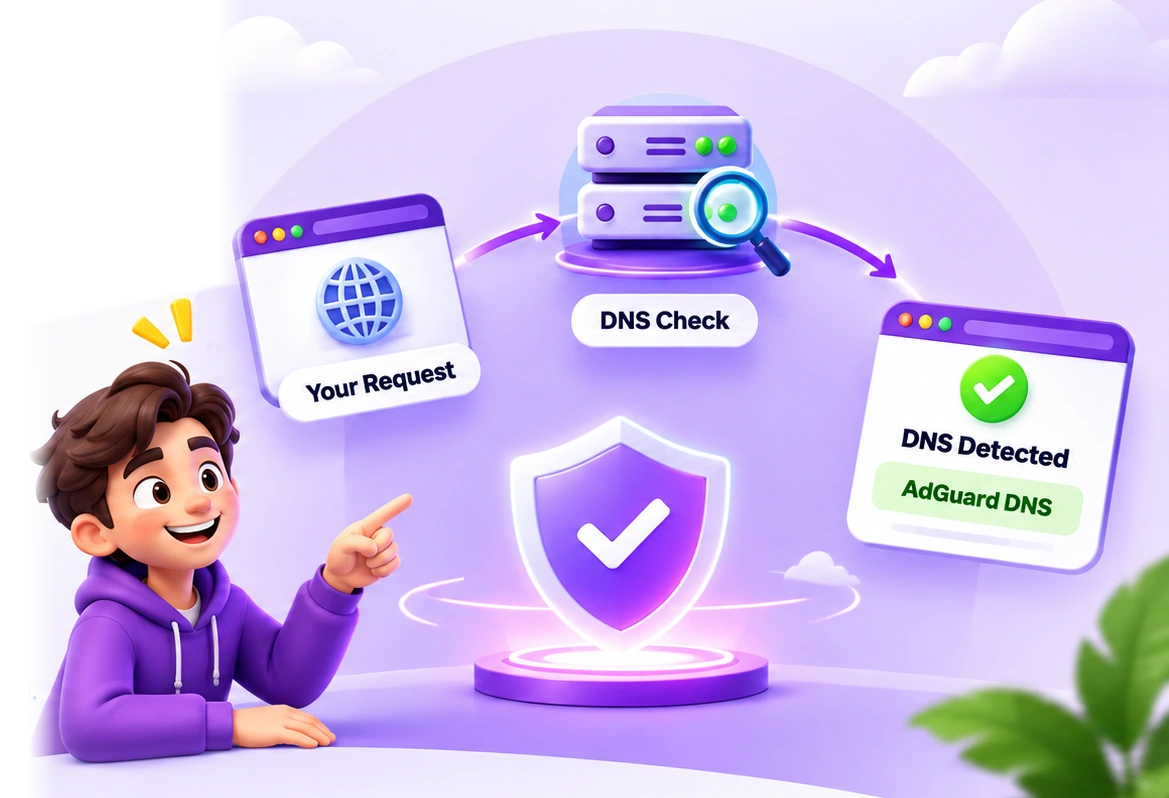
HOW IT WORKS
A quick and simple process to check your current DNS and get the right guidance.
Click the button to start the DNS check.
We check which DNS service is handling your request.
Get a clear result and follow simple setup guidance if needed.
Find the DNS option that fits your needs. Copy the addresses and follow the setup guide.
Blocks ads & trackers
94.140.14.14
94.140.15.15
Adds adult-content filtering
94.140.14.15
94.140.15.16
DNS without content filtering
94.140.14.140
94.140.14.141
Choose your device and DNS option for the right instructions.
dns.adguard-dns.com
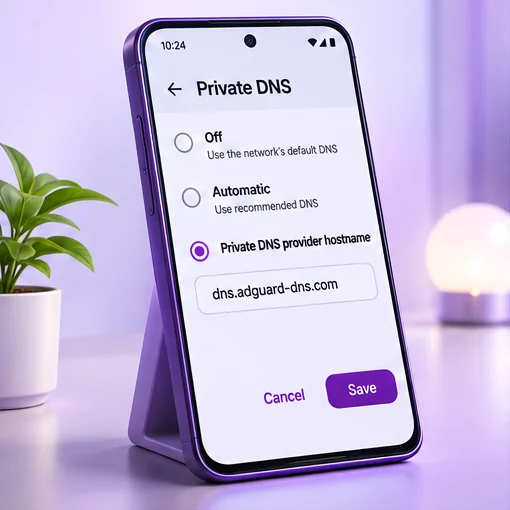
Android 9+ supports Private DNS on most devices. Menu names vary by manufacturer.
Choose your device and protection level. Follow the device-specific steps, copy the correct setting, then return to the DNS Checker.
Use Android Private DNS (DNS-over-TLS).
dns.adguard-dns.com
The checker needs its diagnostic service for live verification.
AdGuard DNS is a public Domain Name System service designed to help block advertising, tracking, and certain harmful domains before your device connects to them. But simply entering a DNS address does not always mean your browser or device is using the resolver you selected.
Understanding how to check your AdGuard DNS configuration is important, especially when ads continue appearing, websites stop loading, or a DNS test identifies an unexpected server. This guide explains how AdGuard DNS works, which DNS settings to use, how to check your connection, and what to do when your configuration does not behave as expected.
AdGuard DNS is a DNS resolver with optional domain-level filtering. DNS is the system that translates website names into network addresses your device can use. When you visit a website, a DNS lookup may take place before your browser establishes a connection to that website.
With AdGuard's filtering resolvers, requests for domains associated with advertising, trackers, or certain threats can be blocked according to the selected protection mode. This may prevent some unwanted network connections without installing a browser extension.
AdGuard DNS can be configured on supported phones, computers, and routers. Its filtering is based on DNS requests, so it works differently from a browser extension that can inspect and modify webpage content.
Normally, when you enter a website address, your device asks a DNS resolver for information needed to reach that website. The resolver returns the relevant DNS records, allowing the connection to continue.
AdGuard DNS follows the same basic process, but filtering modes also evaluate requested domains against their blocking rules. If a domain is blocked, the resolver can return a response that prevents the application from reaching that destination. Otherwise, it resolves the domain normally.
Because this process takes place at the DNS level, the resolver does not generally inspect the complete contents of a webpage. Consequently, DNS filtering cannot remove every advertisement or prevent every form of tracking.
A DNS configuration check helps determine which resolvers are handling particular DNS test requests. This is useful after changing network settings, installing a DNS profile, connecting to a VPN, or switching between Wi-Fi and mobile data.
Start with the DNS Checker at the top of this page. When live diagnostics are available, the checker can submit unique test requests and report the resolvers observed during that test.
Compare the observed information with the DNS service you intended to use. If the test indicates another provider, review your browser's Secure DNS options, operating-system settings, router configuration, and any active VPN.
Keep in mind that a DNS test measures the requests involved in that test. It may not reveal the DNS behavior of every application on your device. Browser-specific encrypted DNS, network proxies, and other DNS-forwarding arrangements can affect the outcome.
The most useful DNS test is one that identifies the resolver used for its requests and explains the confidence and limitations of the result.
If an AdGuard DNS resolver is identified, it suggests the tested requests reached AdGuard infrastructure. If a different resolver is identified, the browser or network may be using another DNS provider. Some tests may return inconclusive results because a resolver's identity is not always apparent from its IP address.
A resolver test also does not automatically prove that advertising is being filtered. For example, AdGuard's Non-filtering DNS resolves domains without applying content-blocking rules.
For stronger verification, combine a resolver observation with your selected configuration and an appropriate filtering test. Avoid assuming that one successful lookup proves every device or application is protected.
AdGuard provides three public DNS configurations. Each has a different filtering purpose, so selecting the correct one matters.
Default DNS is intended for everyday browsing with domain-level blocking of ads and trackers. Its published IPv4 addresses are 94.140.14.14 and 94.140.15.15.
Family Protection includes ad and tracker filtering, plus adult-content filtering and supported safe-search protections where possible. Its IPv4 addresses are 94.140.14.15 and 94.140.15.16. Filtering cannot guarantee that every inappropriate page will be blocked.
Non-filtering DNS provides DNS resolution without AdGuard's content-filtering rules. Its IPv4 addresses are 94.140.14.140 and 94.140.14.141. It can be useful when you want to use AdGuard's resolver without blocking advertising or other content.
Visit the DNS Servers section above to select the appropriate mode and copy its published settings.
The correct setup method depends on your operating system and whether you want traditional DNS or encrypted DNS. Traditional DNS typically uses IP addresses, while encrypted DNS can use DNS-over-HTTPS (DoH) or DNS-over-TLS (DoT) endpoints.
On most Android devices running Android 9 or newer, open Settings and locate Private DNS. The setting may appear under Network & Internet, Connections, or additional network settings depending on the manufacturer.
Choose the option for a Private DNS provider hostname. For Default DNS, enter dns.adguard-dns.com. Family Protection uses family.adguard-dns.com, while Non-filtering uses unfiltered.adguard-dns.com. Save the setting and check your connection.
iPhone and iPad users can configure DNS addresses for a particular Wi-Fi network through its settings. This manual approach does not automatically cover mobile data or every other Wi-Fi network.
Compatible configuration profiles can provide a different, encrypted DNS setup. Only install profiles from a trusted source and review what the profile changes before approving it.
Windows and macOS users can change DNS servers through their network configuration. Select the active connection, locate its DNS settings, and enter the preferred addresses for the chosen AdGuard DNS mode. Save the changes and reconnect if needed.
Remember that setting traditional DNS IP addresses is not the same as enabling encrypted DNS. If you want DoH or DoT, use a supported configuration method and the corresponding service endpoint.
Our interactive setup guide provides device-specific instructions and helps you copy the correct settings.
If AdGuard DNS does not appear active, the problem is not necessarily with the DNS service itself. Conflicting settings, an incorrect hostname, a VPN, or a network policy may cause your device to use another resolver.
Check every digit in the configured IP addresses. For Android Private DNS, enter the supported hostname instead of a plain IPv4 address. If connectivity fails after a change, temporarily restore automatic DNS to isolate the problem.
Browsers such as Chrome can use their own Secure DNS configuration. If the browser is set to a different provider, its DNS lookups may not follow the device's expected resolver. Review browser security settings before interpreting the test result.
Many VPN applications handle DNS requests within the VPN connection. Corporate networks, managed devices, and some routers may also enforce their own DNS policies. Review the active network configuration rather than immediately disabling important privacy or security features.
DNS filtering cannot reliably block every advertisement. Some services, including YouTube, may deliver advertisements from domains also used for normal content. Blocking those domains could break the service, so a DNS-level blocker cannot always distinguish advertising from content.
Using a filtering DNS resolver can reduce requests to known tracking and harmful domains. Encrypted DNS protocols can also protect DNS query contents in transit between your device and the selected resolver.
However, DNS encryption does not make your browsing anonymous, hide all network activity, or replace a VPN. Your chosen DNS provider still processes DNS requests, and other information may remain visible to websites or network operators.
DNS filtering is best treated as one layer of protection alongside operating-system updates, browser security features, and sensible privacy settings.
The most reliable way to use AdGuard DNS is to choose the appropriate filtering mode, apply the correct settings, and verify the result instead of assuming the change worked.
Start with the DNS server settings, follow our device setup assistant, and return to the AdGuard DNS Checker to review available diagnostic results. If the observed resolver differs from your intended configuration, investigate your browser, VPN, device, and router settings before making further changes.
Find quick answers to common questions about AdGuard DNS, its features, setup, and troubleshooting.
AdGuard DNS is a DNS service with optional filtering for ads, trackers, and certain harmful domains. It can reduce unwanted connections at the DNS level, but it cannot remove every advertisement.
Yes. AdGuard offers free public DNS servers, including Default, Family Protection, and Non-filtering options. Other AdGuard DNS products offer additional features and subscription plans.
Use our interactive setup guide to select Android, iPhone, Windows, macOS, or a router. Choose your DNS protection level and follow the device-specific instructions.
Use the DNS Checker once its live diagnostic backend is connected. It will help identify resolvers observed during test requests, although results can be affected by VPNs and browser settings.
Common causes include incorrect DNS addresses, browser Secure DNS overrides, VPN configurations, or network restrictions. Check the configured settings and restore automatic DNS if changing the settings prevents internet access.
Choose Default DNS for ad and tracker filtering, Family Protection for additional adult-content filtering, or Non-filtering for DNS resolution without content blocking. You can copy the addresses from our DNS Servers section .
No. DNS filtering blocks selected domains but cannot reliably distinguish every advertisement from normal content. Its effectiveness depends on how each website or application delivers ads.
It depends on the VPN. Some VPNs use their own DNS resolvers, which can override device DNS settings. Review your VPN's configuration and DNS support before making changes.